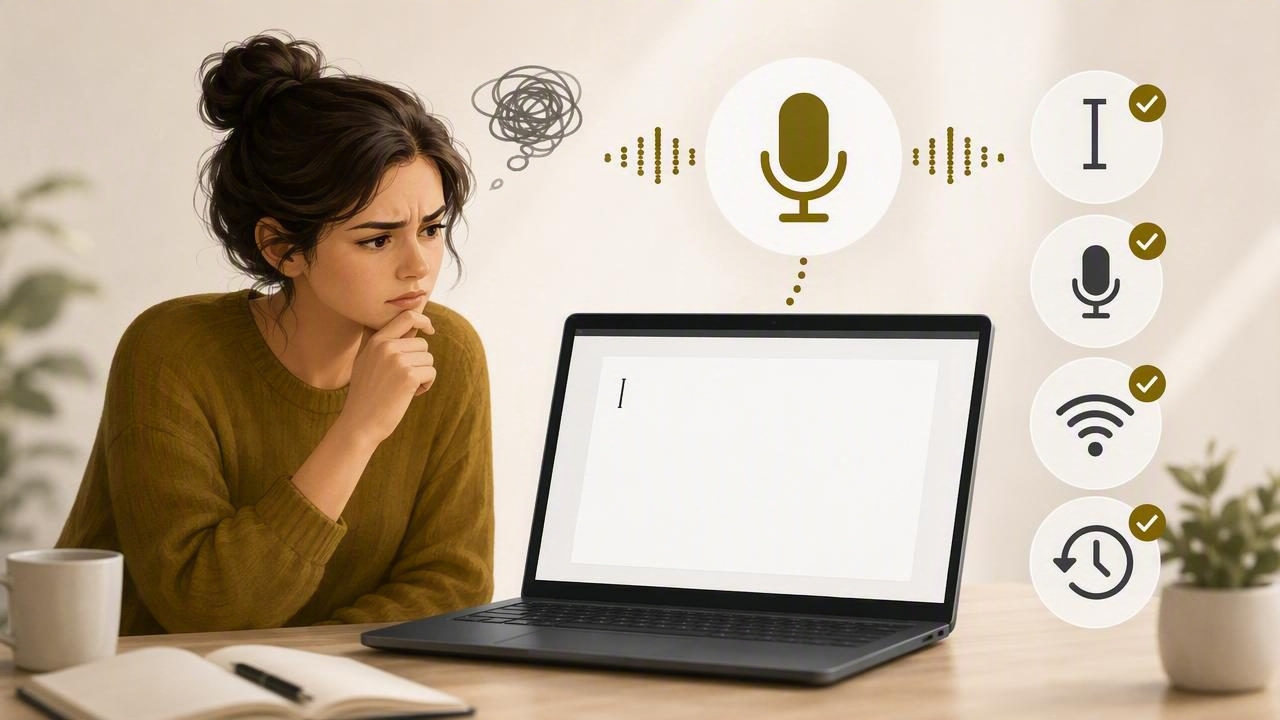
You finish speaking, release your dictation shortcut and look at an empty text field. It is tempting to record the whole message again. First, find out which part of the process needs attention: recording, transcription or pasting.
Dictámelo records while you hold a shortcut, transcribes after you release it, and tries to insert the result at your cursor. A problem with the final paste does not necessarily mean transcription failed. Checking these stages separately can help you recover the text without repeating yourself.
Start with a short, harmless test
Open a plain text editor such as Notepad and click inside an editable document. Dictate a short sentence that contains no private information. This gives you a straightforward target without a chat application's send button, browser extensions or a complicated editor getting in the way.
The default shortcut is Alt + Shift + Space, unless you changed it in Settings. Hold it while speaking, then release it and wait for processing. Keep focus in the same field. If you switch windows before insertion finishes, the original target may no longer be active.
For the complete setup sequence, see the Windows voice dictation guide. The checks below focus on recovering a failed attempt, not reinstalling everything.
If recording did not start
Make sure Dictámelo is running in the system tray and that you are using its configured shortcut. Watch for the floating recording indicator. If it never appears, check the shortcut in Settings rather than assuming the speech service rejected your audio.
Also check Windows microphone access for desktop applications. Select the microphone you intend to use and check that a headset is connected. Speaking into a different input can produce silence or a recording that is too quiet to transcribe usefully.
Test one change at a time. For example, correct the microphone selection and repeat the short Notepad test before changing other settings. That makes it easier to identify what actually solved the problem.
If recording worked but transcription failed
The current public release needs an internet connection for cloud transcription. A recording indicator only confirms that you started recording; it does not prove the provider returned text. Check the error shown in Dictámelo and your connection before trying again.
Open the local history and locate the recent attempt. Failed dictation can offer a retry action. Use it when available after correcting the underlying problem. Do not assume every canceled or interrupted attempt has a recoverable recording, and avoid repeatedly retrying without understanding the error.
AI cleanup is a separate optional step. If cleanup fails, the original transcript stays available. Read that version first: it may already contain what you need, even if it still has conversational phrasing or filler words.
If transcription succeeded but the target is empty
Look for the completed text in history and use its copy control. Click back into the intended field and paste manually. This distinguishes a successful transcription from an insertion problem and lets you keep working while you investigate the target application.
One specific Windows case is an application running as administrator. Windows can block synthetic input from a normal process into an elevated application. Dictámelo leaves the text on the clipboard in that situation. Try a manual paste; do not disable Windows security settings just to make automatic insertion work.
After successful automatic insertion, Dictámelo normally restores the previous clipboard. Seeing an older copied item afterward is therefore not proof that transcription failed. Use the history copy control when you want to place the transcript on the clipboard again.
Check the result before using it
Recovered text still deserves a quick review. Names, numbers, dates, technical terms and negations can change the meaning of a message. Optional cleanup can improve readability, but it is not a substitute for checking those details.
For example, when dictating a support reply, confirm which issue is fixed and which is still being investigated. Do not let a polished sentence imply a promise you did not make. If the text is an instruction for an AI assistant, the guide to dictating AI prompts explains how to review it before sending.
Keep a useful record if the problem repeats
Note the target application, whether recording started, whether history contains text, and whether manual pasting worked. Add your Dictámelo version and Windows system type when asking for help. Those facts are more useful than a general report that dictation stopped working.
Do not share private recordings, provider keys, account tokens or sensitive transcript contents in a public issue. A harmless test sentence is usually a better way to describe an insertion problem.
This workflow applies to the public Dictámelo 0.5.1 release. You can find the available installers on the Dictámelo download page. Start with the smallest failing step, recover any text already available, and only record again when you know you need to.