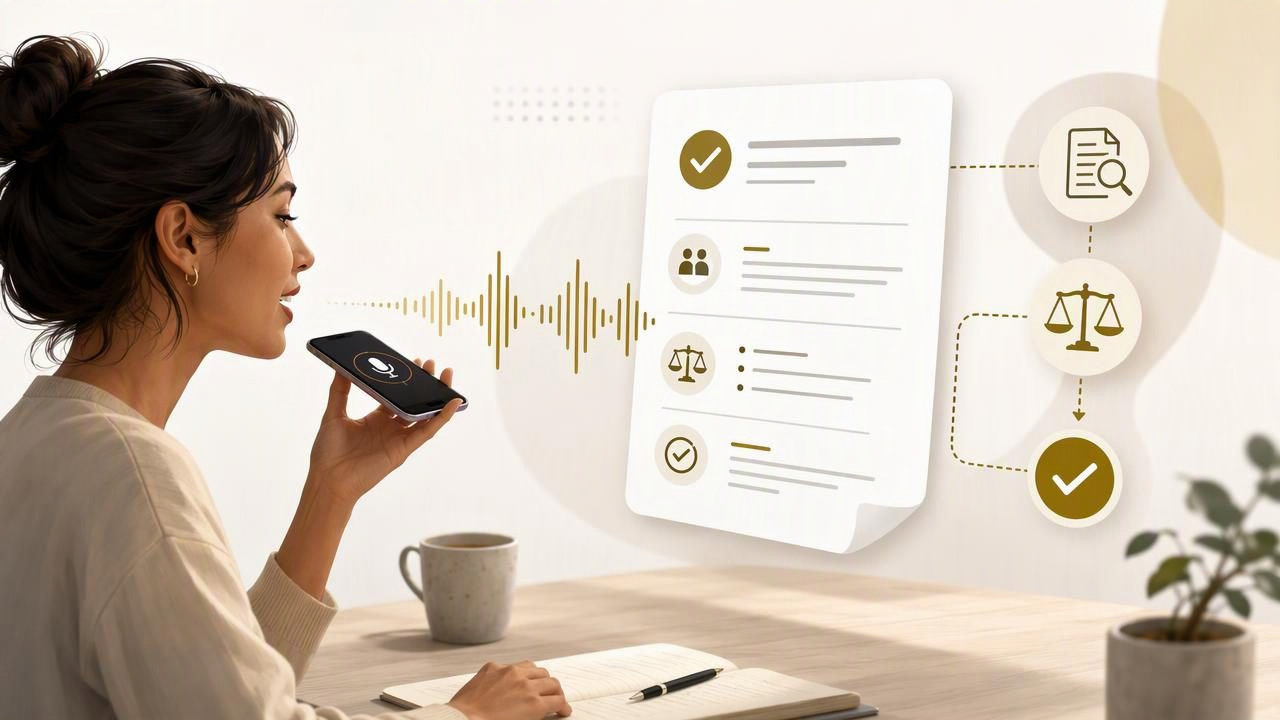
A project decision record documents an important choice: what the team decided, why it was decided, which alternatives were considered, and what happens next. It is useful for software architecture, client work, operations, product planning, and internal processes.
Writing these records can feel slow because decisions are rarely neat. You may need to explain technical context, competing priorities, risks, and exceptions. Voice dictation can make the first draft much faster, especially when you already understand the decision but need help turning your thinking into structured text.
This guide explains how to write a project decision record by voice without creating a vague transcript that nobody can use later. The goal is not to dictate every word perfectly. The goal is to capture the reasoning while it is still fresh, then review the facts before publishing the record.
What Is a Project Decision Record?
A project decision record is a short, searchable document that preserves a decision and its rationale. Teams may call it an ADR (Architecture Decision Record), decision log, decision memo, or project record. The format can vary, but the core questions remain the same:
- What problem or opportunity required a decision?
- What did the team decide?
- Why was this option selected?
- What alternatives were rejected or postponed?
- What are the consequences, risks, and next steps?
The record should not attempt to recreate every conversation. Instead, it should provide enough context for a colleague six months later to understand why a reasonable team made a particular choice.
A useful decision record explains the reasoning, not just the result.
Why Dictate the First Draft?
Decision records often stall because the person responsible is trying to compose polished prose too early. Dictation separates thinking from editing. You can explain the situation in your own words, pause to remember a constraint, and capture concerns that might otherwise be omitted.
This approach works particularly well when you are documenting a decision immediately after a planning session, a customer call, or a technical review. You are more likely to remember why an alternative was rejected, who owns a follow-up task, or which assumption still needs validation.
Voice drafting is not a replacement for verification. Names, dates, version numbers, budget amounts, commitments, and technical commands should always be checked against the source material. Treat the dictated draft as a structured starting point, not an approved record.
Start With a Simple Decision Record Template
Before speaking, open the project workspace where the record belongs and paste a simple template. A visible structure prevents the draft from becoming a long, unorganized explanation.
Title:
Status:
Date:
Owner:

Context:

Decision:

Options considered:

Consequences and risks:

Next steps:

Review date:
You can adapt this format to suit your team. For example, an engineering team may add “Technical constraints” and “Rollback plan.” A consulting team may add “Client approval” and “Commercial impact.” The important part is consistency: people should know where to find the decision and its consequences.
A Step-by-Step Voice Workflow
1. State the decision before explaining the history
Begin with a direct sentence in the Decision section. Do not make readers search through background information to discover the outcome.
For example, a hypothetical product team might dictate:
“Decision: For the first release, we will support CSV imports rather than direct integrations with accounting platforms.”
This gives the record a clear center. You can then explain the evidence, limitations, and future review criteria.
2. Dictate the context in short, complete thoughts
In the Context section, explain the problem that made the choice necessary. Aim for two to five concise paragraphs or bullets. Include constraints that materially affected the decision, such as delivery dates, security requirements, staffing, customer commitments, or technical dependencies.
A useful spoken pattern is:
- “The problem we need to solve is…”
- “This matters because…”
- “The constraints are…”
- “The information we used was…”
For instance: “The import feature is needed before the pilot begins in June. The team has one backend engineer available for the next four weeks. Direct integrations would require credential management and vendor-specific testing that do not fit the pilot timeline.”
Notice that this is specific without being overly detailed. It records the relevant operating conditions rather than every comment made in a meeting.
3. Speak each alternative separately
When dictating options, pause between alternatives. Give each option a name, a benefit, and a reason it was not selected. This makes future review much easier.
| Option | Potential benefit | Reason not selected |
|---|---|---|
| CSV import | Fastest path to pilot feedback | Requires customers to export data manually |
| One direct integration | Lower manual effort for one customer group | Would narrow pilot coverage and add vendor dependency |
| Multiple integrations | Best long-term user experience | Too much implementation and support work for the first release |
Do not pretend an option had no drawbacks. Honest trade-offs make the record credible and help the next team avoid reopening the same discussion without new evidence.
4. Dictate consequences as actions, not predictions
The Consequences and risks section should explain what changes because of the decision. Include both positive and negative effects. Then convert open concerns into named actions.
Instead of saying, “We may need to improve imports later,” dictate a concrete follow-up:
“Risk: CSV field mapping may confuse pilot users. Next step: Maya will review the first ten import support requests by July 15 and recommend whether guided mapping is needed.”
Clear ownership and review dates make a decision record operational. They also distinguish a deliberate temporary choice from an issue that has simply been forgotten.
How to Speak Clearly Enough for a Usable Draft
You do not need to sound formal while dictating. You do need to make the structure audible. Use verbal signposts such as “new section,” “context,” “option one,” “risk,” and “next step.” If your dictation tool supports punctuation commands, use them when they help, but do not interrupt your train of thought to fix every comma.
For names, product labels, acronyms, and technical terms, say them carefully and review them afterward. If a phrase appears repeatedly, custom vocabulary can reduce recurring recognition errors. This is especially helpful for internal system names that are not common words.
Try working in sections of 30 to 90 seconds. Short segments make it easier to restart after an interruption and reduce the chance that unrelated ideas end up in the wrong heading.
A Practical Review Checklist
Once the voice draft is complete, switch from speaking mode to editor mode. Read the document as someone who did not attend the discussion. Ask:
- Is the decision visible in the first few lines?
- Does the context explain the real constraint?
- Are alternatives described fairly?
- Have dates, figures, names, and technical details been verified?
- Does every follow-up have an owner or a clear trigger?
- Could a future reader tell when this decision should be revisited?
Remove conversational filler such as “we kind of felt” or “it was probably best.” Replace it with the evidence available at the time. If uncertainty remains, document it directly: “This estimate is based on the current vendor documentation and will be reviewed after pilot feedback.”
Common Problems When Dictating Decision Records
The draft becomes a meeting transcript
A transcript records sequence; a decision record records reasoning. If you find yourself narrating who said what, stop and summarize the relevant point instead. Mention individuals only when ownership, approval, or expertise matters.
The decision is hidden behind background details
Move the final choice to the top. A reader should not need to read five paragraphs to learn whether the team selected, deferred, or rejected an option.
Dictated numbers or proper nouns are inaccurate
This is a normal review issue, not a reason to abandon voice drafting. Compare important details with the project tracker, approved brief, contract, repository, or source document. Never assume a transcribed amount, deadline, or version identifier is correct without checking.
The shortcut does not trigger in the document
First, click directly into the intended text field and test with a short neutral phrase. If nothing appears, check whether another application is using the same keyboard shortcut. On some systems, permissions for microphone access also need to be enabled. Testing in a plain text editor can help determine whether the issue is with the dictation application or the destination workspace.
Choose a Review Trigger Before You Publish
Many decisions are correct when made but become outdated as the project changes. Add a review trigger rather than relying on memory. A trigger could be a calendar date, a customer milestone, a usage threshold, a security review, or the completion of a pilot.
For the CSV example, the record might say: “Review this decision after the pilot reaches 20 active customer accounts or on September 1, whichever occurs first.” This preserves the original rationale while making future reconsideration intentional.
Turn Spoken Reasoning Into a Reliable Team Record
The best project decision records are concise, candid, and easy to find. Dictation helps you capture the reasoning while it is still available, but quality comes from the structure and review that follow. State the decision early, separate alternatives, assign next steps, and verify every critical detail before sharing.
If you want to use a hold-to-dictate workflow while drafting in your usual applications, see the official voice-to-text guide for Mac. Dictámelo can be downloaded from the official download page for users who want to try this approach in active text fields.