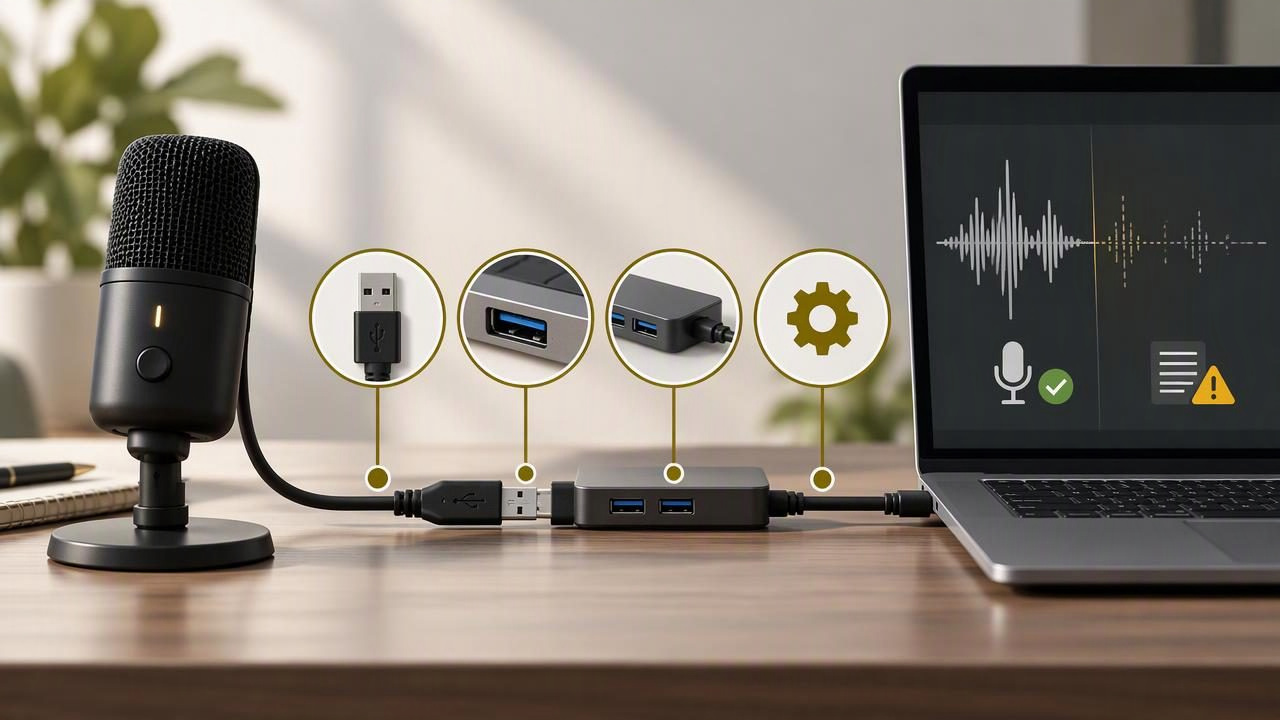
You dictate a sentence, release the shortcut, and find missing words—or no text at all. The next attempt works perfectly. When dictation audio cuts in and out, a USB cable or connection may be responsible, but so might the microphone, operating system settings, internet connection, or transcription process.
The quickest way to find the cause is to test one part of the chain at a time. This guide shows how to trace an intermittent dictation problem from the microphone to the text field, without replacing equipment or changing several settings at once.
First, identify where the interruption happens
Voice dictation usually involves several stages: a microphone captures your voice, a cable or wireless connection carries its signal, the operating system selects an input device, and dictation software processes the recording. If transcription uses a cloud provider, an internet connection is also needed. A problem at any stage can look like “the microphone stopped working.”
Pay attention to what you observe, rather than guessing at the cause. Does the input meter move while you speak? Does the recording sound cut off, or does a complete recording turn into incorrect text? Does the problem happen when the cable moves? These clues help narrow down the fault.
| What you notice | Possible area to investigate |
|---|---|
| The input meter drops or the recording cuts out | Microphone, cable, port, hub, or selected input |
| The recording sounds complete, but words are wrong | Microphone placement, background noise, or speech recognition |
| Audio seems captured, but transcription stalls | Internet connection or transcription service |
| Text appears in the wrong place or not at all | Active text field, app focus, or paste behavior |
Run a short baseline test
Before unplugging anything, create a simple repeatable test. Open an audio recording app or the operating system’s microphone test, select the intended microphone, and say the same short sentence four times. For example: “Test recording: red folder, Monday morning, call Sam.” Pause briefly between repetitions. Avoid confidential details; the goal is to compare audio, not to dictate real work.
- Watch the input meter as you speak. Check whether it responds consistently.
- Listen to the recording, if the app allows it. Note any silence, crackle, or abrupt cutoff.
- Repeat the test without touching the cable or connector.
- Repeat while gently moving the cable near each end. Do not bend it sharply or pull on the connector.
If the meter or recording fails only when the cable moves, a cable, connector, or port becomes more likely. If the recording remains clear but dictated text varies, investigate transcription and speech conditions instead. A short baseline prevents the common mistake of changing USB settings to solve a problem that is actually caused by noise or a text-field issue.
Trace the USB path one link at a time
A USB microphone may connect directly to the computer, or through a chain such as microphone, cable, hub, dock, adapter, and computer port. Every extra connection is another possible point of interruption. Test the simplest path first.
1. Connect directly to the computer
If you are using a USB hub, monitor port, docking station, or extension, temporarily connect the microphone straight to a computer port. Repeat the baseline test. If the interruptions stop, reconnect the hub or dock and test again. That comparison can point to the added connection without requiring you to replace the microphone.
2. Try another port
Move the same cable to another USB port, preferably on the computer rather than on an accessory. Keep the microphone, recording app, and test sentence unchanged. If one port fails and another does not, note which one; a loose or damaged port may need inspection. Don’t force a connector that does not fit comfortably.
3. Test a known-good compatible cable
If the cable detaches from the microphone, try a compatible cable that supports data, not just charging. Check the microphone’s documentation for the connector and requirements. A cable that charges another device is not necessarily suitable for carrying microphone data. Change only the cable, then repeat the same test.
4. Check connector movement and fit
Inspect both ends for visible damage, dirt, or a loose fit. With the microphone recording, gently move the cable near the computer and then near the microphone. If audio cuts out at one end, you have a useful clue about the connection point. Stop if movement makes the connection unstable; repeated wiggling can worsen a damaged port or connector.
5. Reduce power and accessory variables
For testing, disconnect nonessential USB devices and avoid switching between battery and power modes during a comparison. If a hub or dock has its own power supply, check that it is connected as intended. On some computers, power-saving settings can affect USB devices; consider that possibility if failures occur after sleep or during long idle periods. Change power settings only after simpler cable and port tests, and record the original setting so you can restore it.
Confirm that the operating system is listening to the right device
A stable cable does not help if the computer has selected a different microphone. Headsets, webcams, monitors, and built-in microphones can appear as separate inputs. After each reconnect, check the operating system’s input selection and speak while watching its level meter. Select the intended USB microphone rather than assuming the computer will choose it automatically.
On macOS, check the input device and input level in Sound settings. On Windows, check the selected input under System > Sound and use the available microphone test. Menu names can vary by operating system version. If the microphone is absent from the device list, reconnect it and check whether the computer recognizes the USB device before troubleshooting dictation software.
On Windows, microphone privacy permissions can also prevent an app from receiving audio. If the operating system’s test works but one app does not, review that app’s microphone access. For a focused walkthrough of Windows voice dictation setup, see the Windows voice dictation guide.
Separate captured audio from transcription problems
Dictation software may only transcribe after you finish speaking. In Dictámelo, for example, you hold the configured shortcut, speak, and release it to transcribe and paste text into the active field. That timing matters: releasing too early can end a recording before the sentence is complete, while losing focus from the text field can affect where the result appears.
Compare the audio test with the final text. If the recording itself is silent or clipped, focus on the microphone and USB path. If the recording sounds complete but the words are inaccurate, check speaking pace, microphone distance, background noise, and the selected input. If transcription does not complete, check your internet connection; transcription uses a cloud provider and requires internet access. An AI cleanup option may help polish captured text, but it cannot restore audio that was never recorded.
For a useful comparison, dictate a short, non-sensitive phrase into a basic recording app and then into your normal dictation workflow. Keep the microphone, port, and position the same. A clear recording alongside a failed transcription points away from a physical audio interruption and toward the app, network, or text-entry stage.
Keep a simple connection test log
When a problem comes and goes, memory is unreliable. Record the setup and result of each test, especially if you need to report the issue to technical support. Change one variable per test and include what did not change. A small log can prevent repeating the same steps.
| Test | What to record | Example observation |
|---|---|---|
| Connection path | Direct port, hub, or dock | Direct connection works; dock connection cuts out |
| Cable | Original or compatible replacement | Replacement cable records consistently |
| Input selection | Device shown in system settings | Computer switched to the webcam microphone |
| Recording result | Meter movement and playback quality | Meter drops when cable moves near the microphone |
| Transcription result | Text, delay, or error after recording | Recording is clear, but transcription needs internet |
When to stop testing and get help
Stop using a cable or port if you see physical damage, feel unusual heat, or notice that the connector is loose. Contact the microphone manufacturer or your organization’s IT support if the device repeatedly disconnects across multiple known-good ports and cables. Share your test log, operating system, microphone model, and whether the operating system’s own recording test also fails. Those details are more useful than saying only that dictation is unreliable.
Once the USB path is stable, keep the microphone connected through a consistent port and avoid unnecessary adapters. If you use a hub for convenience, compare it with a direct connection when symptoms return. Dictámelo can be downloaded from the official download page; use the same controlled test to distinguish a connection interruption from a transcription or text-entry issue.