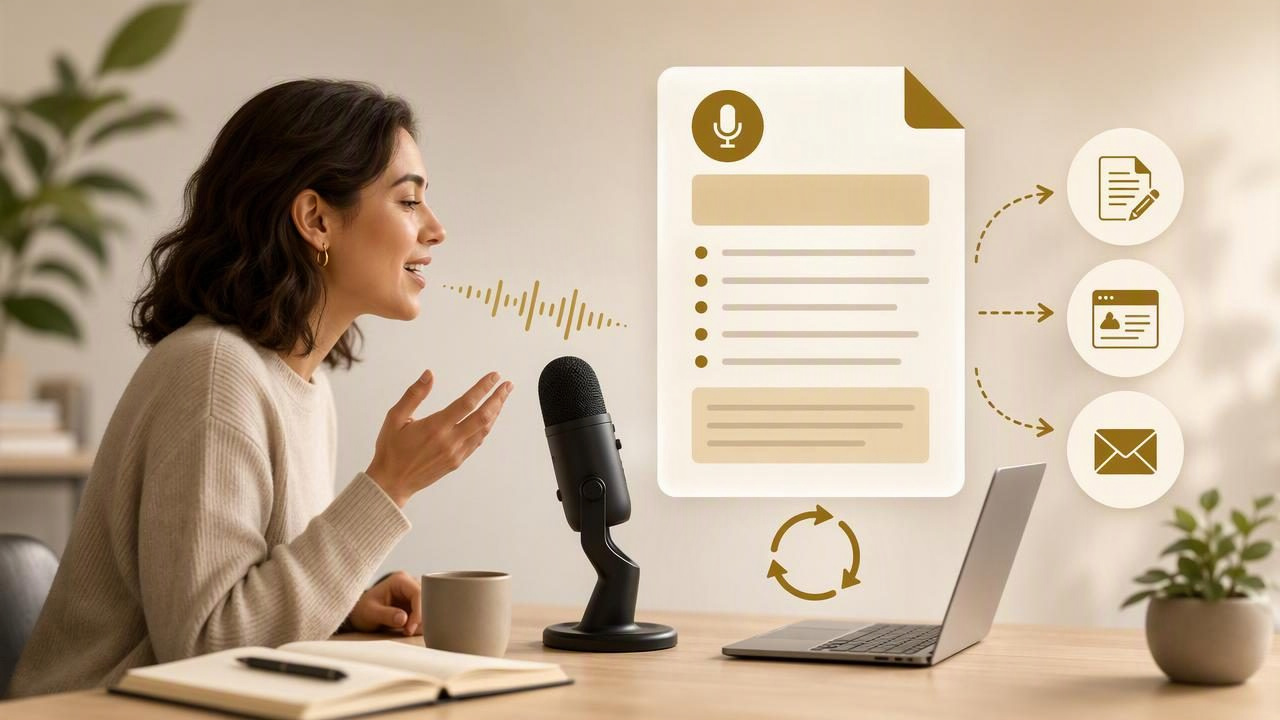
A strong writing brief prevents vague drafts, unnecessary revision rounds, and inconsistent messaging. Yet many people skip the briefing stage because opening a document and typing every requirement feels slow—especially when the idea is already clear in their head.
That is where voice dictation can help. Instead of waiting until you have time to write a perfectly structured brief, you can record a reusable writing brief with dictation while the project context is fresh. The key is not to dictate a stream of disconnected thoughts. It is to use a repeatable spoken framework that turns your expertise into a usable document.
This approach works for marketing teams, freelancers, founders, product managers, agencies, and anyone who regularly assigns content to writers, designers, or AI tools. A reusable brief also makes your own work faster: once the decisions are captured, you do not need to rethink the audience, purpose, or constraints every time you create a related asset.
What Makes a Writing Brief Reusable?
A one-off note might say, “Write something about the new feature.” A reusable brief provides enough direction to guide several pieces of work without forcing every output to sound identical.
The most useful briefs separate stable information from project-specific instructions:
- Stable information: brand voice, audience knowledge level, approved terminology, formatting preferences, and recurring proof points.
- Project-specific information: the asset type, primary goal, topic, call to action, deadline, current campaign, and required sources.
When you dictate these elements in a consistent order, the transcript becomes easier to scan, edit, save, and reuse. You can keep a master brief as a reference, then create a shorter spoken version for each new assignment.
Start With a Spoken Briefing Structure
Before recording, create a simple outline. You do not need a script that sounds formal. In fact, a conversational structure is often easier to dictate naturally. What matters is covering the same essential fields each time.
Use the following template as a starting point:
Project name:
Asset type:
Primary objective:
Target audience:
Reader problem or question:
Core message:
Required facts and sources:
Tone and style:
Words, phrases, or claims to avoid:
Suggested structure:
Call to action:
Review requirements:
Deadline and owner:
Save this template in a notes app, document, project workspace, or text expansion tool. When you are ready to dictate, place the cursor below each label and speak your response. Alternatively, dictate the full brief in one pass and use the labels as verbal signposts, such as, “New section: target audience.”
Those spoken labels are valuable because they make the transcript easier to reorganize later. They also reduce the risk of forgetting a critical requirement, such as a legal approval step or a prohibited claim.
A Practical Workflow for Recording the Brief
The best dictation workflow is usually short, deliberate, and followed by a quick review. Avoid trying to solve every wording decision while speaking. Your first goal is to capture clear direction.
- Gather verified inputs first. Open the source material you will need: product documentation, customer research, approved messaging, campaign notes, or subject-matter expert comments.
- Choose one deliverable. A brief for a landing page should not also attempt to direct a webinar, three social posts, and a sales deck. Create separate sections or separate briefs where the goals differ.
- Open the destination field. Click into the document, form, or project card where the text should appear before starting dictation.
- Dictate in sections. Pause briefly between categories. State headings aloud if your tool does not automatically format them.
- Review names, numbers, and claims. Correct product names, dates, URLs, measurements, pricing references, and any wording that must be exact.
- Save a master version. Store the stable parts in a reusable template and retain the completed version with the project files.
For example, imagine a fictional software company preparing a monthly customer education article. The content lead could dictate the stable guidance once: the audience is operations managers, the tone is practical and direct, jargon should be defined, and every article must distinguish verified product behavior from future plans. For the monthly topic, they only need to add the current feature, customer question, source links, and call to action.
What to Say When Dictating Each Section
Specific instructions produce a more useful transcript than broad opinions. The table below shows how to turn common vague directions into dictation-friendly language.
| Brief section | Too vague | Better spoken instruction |
|---|---|---|
| Audience | “Write for customers.” | “Write for first-time team leads who understand their workflow but may not know the technical terms.” |
| Goal | “Make it engaging.” | “Help readers identify the first three steps they can take today, then invite them to download the checklist.” |
| Tone | “Keep it professional.” | “Use a calm, helpful tone. Prefer short sentences. Avoid hype, sarcasm, and unverified superlatives.” |
| Evidence | “Include stats.” | “Use only the two approved survey findings in the linked research document. Do not estimate or add statistics.” |
| Structure | “Make it easy to read.” | “Open with the reader problem, use three descriptive subheadings, add one realistic example, and end with a next step.” |
Notice that the better instructions describe an observable result. A writer can act on them, and an AI prompt can use them without guessing what “engaging” or “professional” means in this specific context.
Build a Master Brief and a Project Add-On
Trying to dictate your full company context for every assignment creates repetition. Instead, use a two-layer system.
Layer 1: The master writing brief
This is your durable reference document. It may include the organization description, audience segments, tone principles, accessibility standards, approved language, banned phrases, citation rules, and standard editorial process. Review it periodically so outdated messaging does not get copied forward.
Layer 2: The project add-on
This is the short brief you create for one article, email sequence, video script, or prompt. It should explain what is different about this assignment: its goal, audience priority, source materials, angle, deliverable, and deadline.
Here is a hypothetical project add-on you could dictate in under two minutes:
“Project add-on: write a 900-word help article for existing users who are setting up their first team workflow. The goal is to reduce confusion around assigning ownership. Use the product help center article as the only factual source. Explain the setup in four numbered steps. Use plain language and define ‘workspace’ on first use. Do not promise automatic notifications unless the source confirms them. End by directing readers to the setup checklist.”
This format is concise, but it gives the writer clear boundaries. It also creates a record of the decisions made before drafting began.
Use Dictation to Capture Context That Is Hard to Type
Dictation is especially helpful when the most valuable information is nuanced context rather than a polished sentence. For example, after a customer interview, a researcher may remember that users felt overwhelmed not because the interface was difficult, but because they did not know which task to do first. That distinction can change an entire content angle.
Speak the context while it is fresh, then mark it clearly:
- “Customer language to preserve: ‘I need a starting point, not another dashboard.’”
- “Important distinction: this article is for people evaluating options, not people ready to buy.”
- “Potential objection: readers may assume this requires technical setup; explain that the first step is administrative.”
- “Open question: confirm whether the integration supports archived accounts before publication.”
These notes should not automatically become public-facing copy. They are briefing inputs that need verification and editorial judgment. Labeling assumptions and open questions prevents them from being mistaken for confirmed facts later.
Troubleshooting: When the Transcript Is Not Usable
A reusable brief only saves time if the text lands in the right place and remains understandable. A common practical issue is dictating before the intended text field is active. If your words appear in the wrong app—or nowhere at all—stop and check the active cursor location before recording the next section.
For push-to-talk dictation tools, also confirm the shortcut behavior: hold the configured shortcut, speak, then release it to transcribe and paste into the active field. If the shortcut conflicts with another app, choose an unused combination and test it in a plain text editor before using it in a project system.
If names or specialized terms are repeatedly transcribed incorrectly, do not simply fix them every time. Add them to a custom vocabulary feature when available, or keep a short reference list beside the template. Review all transcription carefully when accuracy matters, particularly for figures, dates, product terminology, and quoted customer language.
Cloud-based transcription also requires an internet connection. If transcription does not complete, check connectivity first, then preserve your spoken outline by recording a short note or typing the key headings until the connection is restored.
Turn the Brief Into a Better Prompt or Assignment
Once the brief is reviewed, it can serve several purposes. You can send it to a writer, attach it to a task, use it as a creative brief for a designer, or adapt it into an AI prompt. The important step is to remove unresolved assumptions before treating it as final instructions.
When adapting a brief into a prompt, make the requested output explicit:
Using the verified source notes below, create an outline for a 900-word help article.
Audience: first-time team leads.
Goal: explain the first workflow setup steps.
Tone: practical, plain language, no hype.
Requirements: four numbered steps, define unfamiliar terms, include no claims not supported by the sources.
Return: title options, outline, and a list of facts needing verification.
For more ways to structure spoken instructions for AI, see the guide to dictating AI prompts.
Make Reuse a Habit
After each project, spend five minutes improving the master brief. Add a newly approved phrase, clarify a recurring point of confusion, or remove instructions nobody uses. Over time, the template becomes a practical editorial asset rather than a static document.
Keep the process simple: dictate the project context, review the transcript, verify sensitive details, and save the stable guidance for next time. If you want a desktop workflow for capturing spoken briefs directly into the active text field, you can download Dictámelo and test it with your own template.