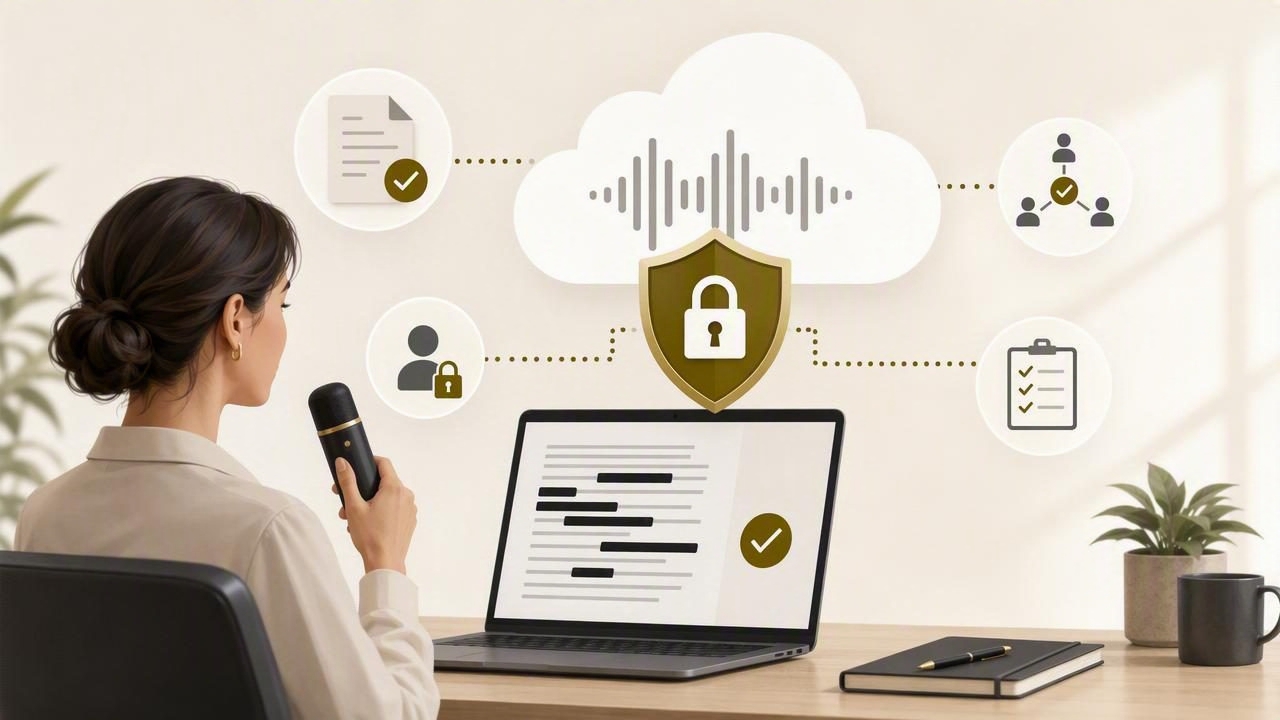
Voice dictation can make writing faster, especially when you need to turn an idea, email draft, project note, or AI prompt into text without stopping to type. But speed should not come at the expense of confidentiality. If a dictation workflow uses a cloud transcription provider, the audio must travel over the internet for processing. That means users need clear habits for deciding what to dictate, where to dictate it, and how to review the resulting text.
This guide explains how to protect confidential information when using cloud dictation in practical, everyday situations. It is designed for freelancers, managers, support teams, consultants, developers, healthcare-adjacent administrators, and anyone who handles sensitive business or personal information.
The goal is not to avoid voice dictation entirely. The goal is to create a sensible workflow: dictate low-risk language freely, reduce or remove sensitive details when needed, and add protected information manually only after transcription.
Understand the privacy boundary of cloud dictation
Before creating rules, understand the basic technical boundary. In a cloud dictation workflow, your spoken audio is sent to a remote transcription service and returned as text. An internet connection is therefore required. The transcription process is different from typing locally into a document, because speech data leaves the device for processing.
That does not automatically make cloud dictation inappropriate. Many routine messages contain no sensitive information at all. However, it does mean you should avoid treating a dictation tool as a place to speak unrestricted confidential material.
A useful rule is:
Dictate the structure and non-sensitive wording; enter sensitive identifiers manually.
For example, you can dictate, “Please send the revised agreement to the client after legal review,” then manually add the client name, account number, contract reference, or private email address.
Classify information before you speak
You do not need a complex compliance program to make better decisions. A simple three-level classification system is enough for many individuals and small teams.
| Information level | Examples | Recommended dictation approach |
|---|---|---|
| Low sensitivity | General project updates, public product descriptions, meeting agendas | Usually suitable for dictation |
| Moderate sensitivity | Internal timelines, non-public roadmap details, client context without identifiers | Dictate carefully; remove names and unique details |
| High sensitivity | Passwords, payment details, medical information, legal case facts, government IDs | Do not dictate; enter manually through approved systems |
Classification is especially helpful because confidential information is not limited to obvious secrets. A collection of small details can also become sensitive. A customer’s name, the product they use, a complaint, and a renewal date may reveal more together than each item does alone.
Information you should generally avoid dictating
- Passwords, passphrases, recovery codes, API keys, and private access tokens.
- Full credit card, bank account, tax, passport, social security, or national ID numbers.
- Detailed medical records, diagnoses, prescriptions, or patient identifiers.
- Confidential legal strategy, privileged communications, or unredacted case details.
- Private credentials embedded in technical commands or configuration files.
- Any data your employer, client contract, or industry policy specifically prohibits from being shared with external processors.
When in doubt, treat the information as sensitive until you can verify your organization’s policy.
Use placeholders to keep the useful context
One of the best ways to protect confidential information when using cloud dictation is to replace specific identifiers with spoken placeholders. You can preserve the meaning of a sentence without speaking the identifying details.
Instead of dictating:
Hi Maria, your account ending in 4821 was charged $1,240 on March 4.Dictate:
Hi client name, your account ending in account reference was charged amount on date.Then replace the placeholders manually in the final draft. This approach is useful for emails, CRM notes, support replies, internal handoffs, and proposal drafts.
Use placeholders that are easy to find later. Brackets work well because they stand out during review:
Please confirm that [CLIENT NAME] approved [PROJECT SCOPE] by [DATE].If you dictate regularly, establish a small personal vocabulary of consistent placeholders, such as “bracket client name bracket,” “private amount,” or “insert contract ID.” Consistency makes review faster and reduces the chance of accidentally sending a draft with incomplete fields.
Create a safe environment before starting dictation
Confidentiality is not only about the cloud service. It is also about the room, the microphone, and the screen in front of you. Someone nearby may overhear your voice, see your text appear, or gain access to an unlocked computer.
Check your surroundings
- Do not dictate sensitive work in shared offices, waiting rooms, cafés, airports, or public transit.
- Use a private room for internal discussions, customer situations, or non-public company plans.
- Wear a headset microphone where appropriate so you can speak more quietly and reduce background pickup.
- Be aware of smart speakers, open calls, recording devices, and nearby colleagues before speaking.
Check the active text field
Many voice dictation tools paste text into the application currently in focus. Before using a shortcut, verify that the active field is the correct document, draft, ticket, or notes app. A moment of attention can prevent text from appearing in a chat channel, browser search field, or customer-facing form.
For a safer routine, pause for two seconds and ask: What window is active, who could see this text, and is this the final destination?
Separate drafting from sending
Dictation is best treated as a drafting step, not a sending step. Create text first, review it second, and send it only after confirming that it contains the right information and no unintended details.
This matters because speech is naturally conversational. You may mention an extra detail while thinking aloud, use a name you did not intend to include, or accidentally dictate a correction that should have stayed private.
A simple review workflow looks like this:
- Dictate a non-sensitive first draft in a private workspace.
- Read the complete transcript before copying or sending it.
- Search for placeholders, names, amounts, dates, and identifiers.
- Add necessary confidential details manually, only in an approved destination.
- Check recipients, attachments, links, and the final channel before sending.
For example, a consultant could dictate the body of a follow-up email, review its tone and factual accuracy, then manually add the recipient’s name and the private link to the final document.
Be careful with AI prompts and copied context
Voice dictation is often used to write prompts for AI tools. The same confidentiality principle applies: the transcription service may process your audio, and the AI tool may be a separate service with its own data handling terms and settings.
Before dictating a prompt, remove client names, proprietary code names, personal data, and unique account details. Describe the problem in generalized terms whenever possible.
For instance, instead of saying, “Summarize the complaint from Acme’s CFO about the failed integration on their production account,” you could dictate:
Help me draft a neutral summary of a customer complaint about an integration issue. Include the problem, impact, current status, and next steps.Afterward, add approved specifics manually in your internal system. This preserves the usefulness of the prompt while reducing unnecessary exposure.
For more practical guidance on creating clear spoken instructions, see this guide to dictating AI prompts.
Review transcription errors as a security task
Reviewing dictation is not just about grammar. It is also a confidentiality and accuracy safeguard. Names, numbers, dates, and abbreviations are especially vulnerable to transcription mistakes. A misheard email address, invoice amount, or medication name can create operational problems even if no data was improperly disclosed.
Pay extra attention to:
- Names of people, companies, and internal projects.
- Numbers, currencies, dates, and version identifiers.
- Email addresses, web links, and file paths.
- Negations such as “do not,” “cannot,” and “not approved.”
- Technical terms that may be confused with common words.
If your dictation software supports custom vocabulary, consider adding recurring non-sensitive product names or internal terms. Better recognition can reduce rework, but it does not remove the need for a final review.
Set team rules that people can actually follow
Teams benefit from short, specific rules rather than vague instructions such as “be careful with data.” A practical internal policy might state:
- Do not dictate passwords, payment data, government IDs, or protected health information.
- Use placeholders for client names and account identifiers in first drafts.
- Dictate confidential work only in a private environment.
- Review text before posting it in customer-facing or shared channels.
- Follow existing contractual, legal, and security requirements when they are stricter.
Managers should also make it easy for people to ask questions. If someone is unsure whether a detail can be dictated, they should know who can clarify the policy. Security habits improve when the safe choice is clear and convenient.
Choose tools with clear limits and use them intentionally
Before adopting any cloud dictation tool, read its documentation and understand where transcription occurs, whether internet access is required, how history is handled, and what controls are available. Avoid assuming that a tool is offline, encrypted in a particular way, or certified for a regulated use case unless its official documentation explicitly says so.
For example, Dictámelo uses a cloud provider for transcription, so an internet connection is needed. Its history is stored locally, but that does not change the need to make thoughtful decisions about what you speak for transcription. If you want to try a shortcut-based workflow that transcribes and pastes into the active text field, you can download Dictámelo here.
Make confidentiality part of your dictation habit
The safest dictation workflow is usually simple: speak general language, use placeholders for identifiers, dictate in private, review every transcript, and manually add sensitive details only where they belong. These habits protect your clients, colleagues, organization, and personal information without giving up the speed benefits of voice input.
Cloud dictation can be a useful writing assistant when used with appropriate boundaries. Treat every spoken draft as something that deserves the same level of care as an email, document, or form you would type yourself.