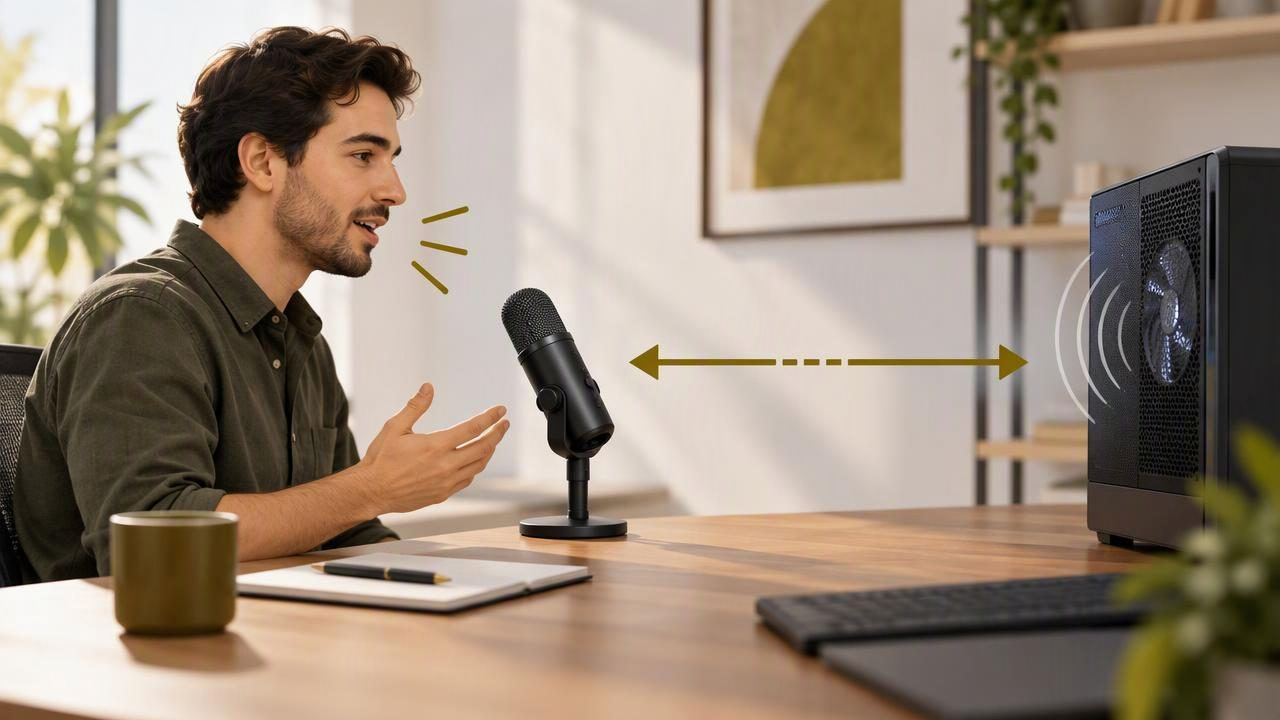
A steady computer fan can make voice dictation harder to understand, especially when its hum sits underneath every sentence. The fix is not always a new microphone or noise-filtering software. Often, a better position can give your voice more presence while making the fan less prominent.
To position a dictation microphone away from computer fan noise, consider three things together: the distance between your mouth and the microphone, the direction of the computer’s airflow and noise, and how your microphone picks up sound. A few repeatable tests can help you find a practical setup for your desk.
Why a computer fan can interfere with dictation
A fan usually produces a continuous sound rather than a sudden interruption. That can be difficult to notice while you are speaking, but the microphone records both your voice and the background hum. If the fan is close to the mic, or your voice is relatively quiet, the recording may contain less separation between speech and noise.
Transcription tools need a clear speech signal. When background sound masks parts of a word, a system may mishear a name, drop a short word or produce an awkward phrase. Noise reduction can help in some setups, but aggressive processing may also make speech sound thin or clipped. Start with the physical arrangement before changing software settings.
Start by identifying the fan and microphone
Before moving equipment, find out which fan is creating the sound. It may be in a desktop tower, laptop, monitor, docking station or nearby device. Listen at your normal desk position and check whether the fan changes speed when you open demanding applications. Do not block vents or place a computer where it cannot cool properly to make it quieter.
Next, identify the microphone’s pickup pattern if it is listed in its specifications. Many common desk microphones are designed to pick up sound most strongly from one direction, but patterns differ. A directional microphone may reject some sound from its sides or rear; an omnidirectional model is designed to pick up sound from all around it. Do not assume every microphone has a useful “silent” side. Check its documentation and test it in your actual room.
Put the microphone close to your mouth
A reliable first adjustment is to bring the microphone closer to your mouth while keeping it a comfortable distance away. When your voice is stronger at the mic, the fan may be less prominent relative to your speech. You do not need to lean forward or speak unusually loudly; the aim is to set up the mic so ordinary conversation reaches it clearly.
- Use a stand, boom arm or headset to keep the mic in a stable position.
- Keep it near the side of your mouth rather than directly in your breathing path.
- Speak at your normal dictation volume and avoid turning your head away during sentences.
- Check that the mic is not rubbing against clothing, a cable or your desk.
If you move the mic closer, listen for new problems such as plosive bursts on words beginning with “p” or “b,” breath noise or distortion. If those appear, shift it slightly to the side or farther away, then repeat your test. The best distance is the one that captures your voice clearly without introducing other distracting sounds.
Change the angle, not just the distance
Move the microphone so it faces your mouth and the computer fan is not directly in front of its most sensitive area. If your microphone has a directional pickup pattern, experiment with positioning the computer toward the side or rear of the mic, where it may pick up less sound. The exact result depends on the model and the way sound reflects around your room.
For example, if a desktop tower is on the right side of your desk and your mic sits beside your monitor, try moving the mic closer to you and slightly left. Keep the tower’s vents clear. Then record the same short sentence in both positions. Avoid assuming that turning a microphone around will help: some models pick up sound from the rear, and others do not.
Room surfaces matter, too. A wall or hard desk can reflect fan noise back toward the microphone. If you can, adjust the mic’s position without placing it in a cramped corner or directly beside a reflective surface. Make one change at a time so you can tell which adjustment helped.
Choose a stable, low-vibration location
Fan noise can reach a microphone through the air, but computer vibration may also travel through the desk. If your mic is resting on the same surface as a desktop computer, tapping, drive activity or vibration can be picked up along with your voice. A separate stand or boom arm can help isolate the mic from desk movement.
Do not place the microphone on top of a computer, against a laptop vent or where a cable can transmit vibration. Keep cables loosely arranged rather than stretched tight between the mic and computer. For a headset, check that the boom stays put when you turn your head; a mic that shifts during dictation can change both volume and sound quality.
Run a short, controlled placement test
Testing by ear while you are speaking can be misleading. Instead, record a short sample or dictate the same test text from each position. Keep your speaking volume, room conditions and computer workload as consistent as possible. A simple comparison helps separate microphone placement from changes in fan speed or your own delivery.
- Choose a sentence with a name, a number and a few ordinary words, such as: “Send Jordan the revised draft by Thursday at three.”
- Record or dictate it from your current position.
- Move the microphone closer or change its angle, then repeat the exact sentence.
- Compare both results for missing words, incorrect names and fan hum.
- Keep the better position and test once more during your usual work conditions.
If you are using speech-to-text software, review the written result as well as the sound. The goal is not merely a quieter recording; it is a clearer voice signal that produces more reliable text. You can also listen to the samples with headphones at a comfortable volume, but do not turn playback up so high that a small difference seems larger than it is.
Check input level and noise-processing settings
Once placement is reasonable, check that your operating system and dictation app are using the microphone you expect. A laptop may select its built-in mic even when a USB microphone is connected. Confirm the input device in the relevant sound or app settings, then speak at your normal volume and look for a clear response on the input meter if one is available.
A level set too low may leave your voice faint compared with the fan. Raising it excessively can amplify both voice and background noise, so make small adjustments and test again. If your operating system, headset or microphone offers noise suppression, compare it on and off using the same sentence. Keep the setting that preserves clear speech rather than simply making the background quieter.
Also check for overlapping audio processing. A microphone utility, operating-system feature and calling app may each apply their own filtering. If the voice becomes watery, choppy or unnatural, temporarily disable one processing feature at a time and compare. Avoid changing several settings at once, or it will be difficult to identify the cause.
When moving the microphone is not enough
If the fan remains prominent, try reducing the computer’s workload during dictation where practical. Closing an unnecessary high-demand application may change how hard the computer works, but do not compromise cooling or interrupt important processes. If the noise comes from a desktop tower, moving it farther from the microphone may help, provided cables remain safely connected and airflow stays unobstructed.
A headset microphone can be useful when desk placement is difficult because it stays close to your mouth as you move. A separate USB microphone can offer more positioning options, but its performance depends on its design and your environment. Neither option guarantees that fan noise will disappear. Choose based on comfort, connection needs and the results of a real test at your workstation.
A simple routine for clearer daily dictation
Once you find a position that works, mark or remember the placement so it is easy to restore. Before a longer dictation session, check that the mic is aimed correctly, the selected input is right and the fan is not unusually loud. A brief opening test can reveal a loose cable, shifted boom or changed setting before you dictate a full message.
For platform-specific setup steps, see this Mac voice-to-text guide. If you use a voice dictation app, remember that microphone placement improves the audio it receives but cannot guarantee perfect transcription. Dictámelo, for example, lets Mac and Windows users hold a configured shortcut, speak and release to transcribe into the active text field; its optional AI cleanup is separate from physically reducing fan noise. You can find the app on the Dictámelo download page.
The most useful setup is usually the one you can repeat comfortably: keep the mic close to your voice, angle it thoughtfully in relation to the computer, and compare changes with the same short test. That turns a vague background-noise problem into a few practical adjustments you can assess at your own desk.