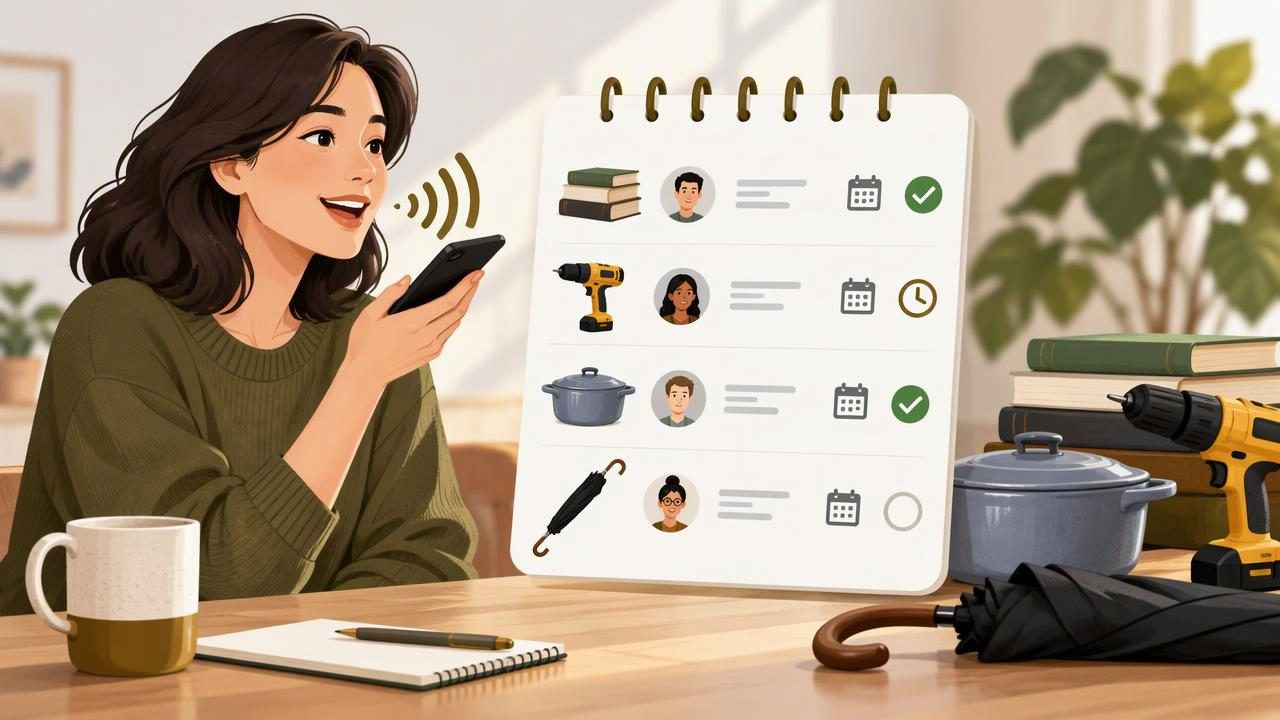
A borrowed umbrella, a book lent to a neighbor, or a charger taken to the office can be easy to forget about. A short borrowed items note gives you one place to record what left your hands, who has it, and whether it came back. Voice dictation can make capturing that information easier when you are tidying up, packing, or already holding something else.
The trick is not to dictate a long story. Use a consistent, compact format that is easy to scan and update. This guide walks through a practical way to make a simple note by voice, with examples you can adapt for home, school, or work.
Choose a place for the note before you start
Dictation puts spoken words into the text field that is currently active. It does not decide where your information belongs, so first open a notes app, document, or other text field you already use. Create one note with a clear name, such as Borrowed items. Keeping entries together makes the list more useful than scattering reminders across messages and scraps of paper.
If other people use the same device or account, consider whether the note should be private or shared. A shared household note can help everyone check the list, but it should only include information that is appropriate for all readers. Avoid adding sensitive details such as access codes, payment information, or personal information that is not needed to identify the item.
Use a four-part entry
For each item, capture four things: the item, the person or place it went to, the date it was lent, and its status or expected return date. You can say the labels aloud so that the structure appears in the note consistently.
Item: [what was lent]
With: [person or place]
Lent: [date]
Due: [date or not set]
Status: Out
For a particularly simple list, combine the labels into one line: Blue umbrella — with Maya — lent Tuesday — due Friday — out. Pick the format you will actually keep using. A compact line is quick to dictate; separate fields are easier to edit when details change.
Dictate the note in short, useful batches
Before speaking, place the cursor where the new entry should go. Say one complete entry at a time, pause, and check the text before adding another. Short batches make it easier to catch a wrong name or date before it becomes part of a longer list.
- Open the note. Click or tap the exact place where the entry belongs.
- Start dictation. Use the voice-dictation method available in your app or operating system.
- Speak at a natural pace. Say the item and each important detail clearly, rather than rushing through the whole list.
- Finish the entry. Pause between fields or entries if that helps you keep the wording clear.
- Review and correct. Check names, dates, item descriptions, and punctuation before moving on.
For example, a hypothetical entry might be: Item: folding step stool. With: Jordan in apartment 3B. Lent: April 8. Due: not set. Status: out. That records enough to identify the object and follow up without adding a long explanation about why it was borrowed.
Make descriptions specific enough to identify the item
“Cable” may not mean much a week later. Add one or two distinguishing details that help you tell similar objects apart, such as the color, size, brand, or where you keep it. A useful description might be black USB-C laptop charger rather than simply charger.
Keep the description practical. You do not need to inventory every scratch or accessory unless that detail matters. For a book, the title may be enough. For a set of tools, note the type and quantity, such as two adjustable wrenches. For a borrowed kitchen dish, large glass baking dish with blue lid could be clearer than dish.
If a person’s name could be confused with someone else’s, add a short identifier you are comfortable storing, such as a family role or team name. Do not guess at spellings while dictating: review the written name and correct it if needed.
Separate confirmed details from guesses
It is better to write Due: not set than to invent a return date. If you remember lending something but cannot recall the day, mark the date as unknown or approximate it clearly: Lent: around Monday, date unconfirmed. This keeps the note honest and prevents a guess from looking like a definite agreement.
Likewise, do not turn a casual comment into a firm deadline. If someone said they might return an item next week, record Expected: next week, not confirmed. A note is most helpful when it distinguishes what you know from what you intend to ask about.
Update the status when something changes
A borrowed-items note is only useful if the entries reflect reality. Use a small set of status words, such as Out, Returned, or Follow up. When an item comes back, update its existing entry instead of creating a second one that makes it look as though the item is still out.
You might dictate: Update the blue umbrella entry. Status: returned April 11. Afterward, check that you edited the intended line and did not append the update as a new, disconnected entry. If your notes app makes editing awkward, a simple status column or a dated return note beneath the entry can work just as well.
For anything still out, consider whether a follow-up date is useful. A reminder date is different from a promised return date, so label it clearly: Follow up on Friday does not mean the item is due on Friday.
Example: a compact note with different borrowed items
The following fictional example shows how the same pattern works for household objects and shared work supplies:
Borrowed items

Item: black USB-C laptop charger
With: Priya, design team
Lent: May 6
Due: May 9, confirmed
Status: Out

Item: green gardening gloves, one pair
With: Lee next door
Lent: May 7
Due: Not set
Status: Follow up May 14

Item: The Blue Atlas, paperback
With: Sam
Lent: May 8
Due: Not set
Status: Returned May 12
The example uses invented people and dates. In your own note, use the detail level that fits your situation. If a single-line format is easier to maintain, the entries can be shortened while keeping the same key facts.
Common dictation mistakes to check
- Similar-sounding names: Confirm names and spelling, especially when several people might match.
- Dates spoken casually: Replace vague wording such as “next Friday” with a calendar date if ambiguity could cause a problem.
- Numbers and quantities: Check whether dictation entered “one” or “won,” and verify item counts.
- Run-on entries: Add line breaks or labels so one item does not blend into the next.
- Wrong cursor position: Make sure the note is active and the cursor is at the intended location before speaking.
- Unreviewed updates: Read the result once before closing the note; a transcription can sound plausible while changing a name or detail.
If text appears in the wrong app, stop and undo it before continuing. Reopen the note, click the right field, and dictate a short test phrase if you are unsure the cursor is active. For more setup and operating-system-specific steps, see the Windows voice dictation guide.
Keep the habit lightweight
You do not need to record every object someone touches. Use the note for items you are likely to forget, items that are valuable or important, and things that need to come back by a particular time. A quick entry made when the item leaves is usually more reliable than trying to reconstruct a list at the end of the month.
Review the note occasionally. Confirm that open entries are still relevant, mark returned items, and remove details you no longer need. If you lend things often, put the note somewhere easy to open and use the same entry format every time. Consistency makes a short list more useful than a complicated tracking system you stop updating.
Use voice dictation as a way to capture, not manage
Voice dictation can save the effort of typing a quick entry, but the note itself still needs your attention. A dictation tool transcribes speech into the active text field; it does not automatically verify a loan, send a reminder, contact the borrower, or manage the item for you. Review the wording and take any follow-up action separately.
If you want to try a dedicated desktop dictation workflow, download Dictámelo for a supported Mac or Windows device. Dictámelo uses a configured shortcut to dictate into the active text field; transcription requires an internet connection. Choose a note location that suits your needs, and keep the list simple enough that you will remember to update it.