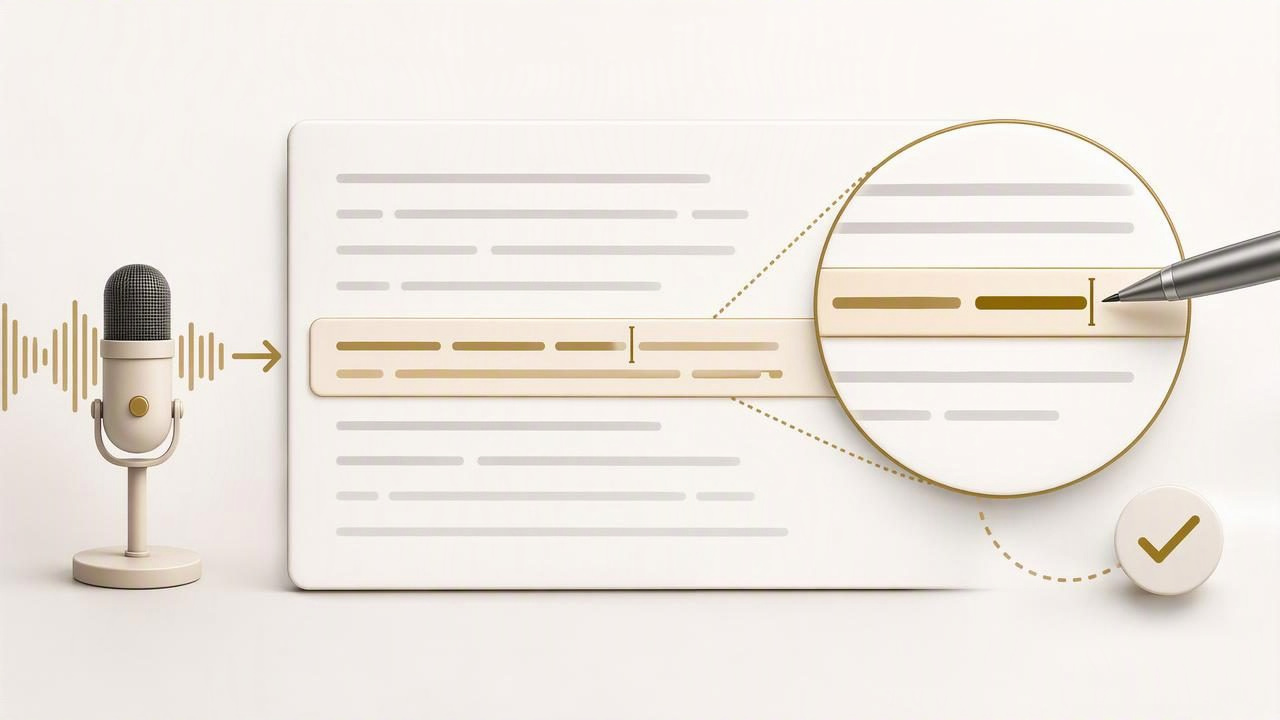
Voice dictation is excellent for getting ideas onto the page quickly. You can explain a proposal, draft a customer reply, capture notes after a call, or write a first version of an article without stopping to search for every word on the keyboard. But once the paragraph appears, a common editing challenge remains: how do you edit one sentence in a dictated paragraph without disrupting everything around it?
The answer is usually not to dictate the whole paragraph again. A better approach is to treat dictation and editing as two separate stages: speak the rough version first, then make focused corrections with the keyboard, mouse, or accessibility tools available on your computer. This preserves momentum while giving you control over wording, facts, tone, and formatting.
This guide explains a practical workflow for changing a single sentence in a voice-dictated paragraph. It also covers what to do when transcription lands in the wrong field, when a replacement sentence is longer than expected, and when a small edit changes the meaning of the entire paragraph.
Why editing one sentence matters
A dictated paragraph often contains strong ideas but imperfect phrasing. You may speak naturally and later notice that one sentence is too vague, too long, too casual, or factually incomplete. For example, you might dictate:
We can probably deliver the website update next week if the remaining assets arrive soon.
After reviewing your schedule, you may need to make that sentence more precise:
We will confirm the delivery date after receiving the remaining approved assets.
The second version avoids an unsupported promise. The rest of the paragraph may be perfectly usable, so replacing only that sentence is faster and safer than rewriting the entire message.
Small sentence-level edits are especially important in client communication, project updates, support documentation, legal-adjacent notes, technical instructions, and AI prompts. In those contexts, a single inaccurate sentence can change expectations or produce an unclear result.
The simplest workflow: dictate, pause, review, replace
The most reliable method is straightforward. Dictate the complete thought, then review it before sending, publishing, or pasting it into a final system. When one sentence needs work, select only that sentence and replace it.
- Dictate the paragraph naturally. Focus on the idea rather than trying to self-edit every phrase while speaking.
- Read the paragraph once. Look for unclear claims, missing details, repeated words, incorrect names, dates, and overly long sentences.
- Identify the exact sentence to change. Avoid selecting the whole paragraph unless the entire structure needs revision.
- Select the sentence. Drag with the mouse, use Shift with arrow keys, or place the cursor at the beginning and extend the selection to the end.
- Type or dictate the replacement. If you dictate the new version, confirm that the old sentence is still selected before starting.
- Read the transition aloud or silently. Make sure the sentence before and after the edit still connect logically.
This process is simple, but the final review is essential. A replacement sentence can be grammatically correct by itself while creating an awkward transition in the paragraph.
Choose the right editing method for the size of the change
Not every correction deserves the same approach. Typing is often faster for a two-word correction, while dictating can be more efficient when a sentence needs to be substantially rewritten.
| Type of edit | Best method | Example |
|---|---|---|
| One word or number | Type the correction | Change “Tuesday” to “Thursday” |
| Short phrase | Select and type | Replace “very soon” with “after approval” |
| Full sentence rewrite | Select sentence, then dictate or type | Clarify a project status update |
| Several connected sentences | Outline first, then rewrite the passage | Reorganize a confusing explanation |
| Names or technical terms | Type carefully or use saved vocabulary where available | Correct a product name or API endpoint |
A useful rule is this: use the keyboard for precision and voice for expression. This hybrid approach prevents you from wasting time dictating tiny corrections while still allowing you to revise larger ideas at speaking speed.
How to replace a sentence without deleting punctuation or formatting
When you select a sentence, include its ending punctuation whenever possible. This prevents an old period, question mark, or exclamation mark from remaining beside the replacement text. If the sentence is in a list, email, or document with formatting, confirm that your selection does not accidentally include the next bullet, paragraph break, or heading.
For a clean replacement, follow this sequence:
- Click immediately before the first word of the sentence.
- Hold Shift and click after the ending punctuation, or use keyboard shortcuts to extend the selection.
- Check that the highlight begins and ends exactly where intended.
- Replace the selected text with your new sentence.
- Add a space if the next sentence has attached itself to the new text.
Here is a hypothetical example. Original dictated text:
The report is almost complete. I will send it today. The finance section still needs confirmation.
If “I will send it today” is no longer accurate, select only that sentence and replace it with:
I will send the report after the finance section is confirmed.
The revised paragraph now reads smoothly:
The report is almost complete. I will send the report after the finance section is confirmed. The finance section still needs confirmation.
At this point, the paragraph is technically correct but repetitive. A final read reveals that the third sentence should probably be removed or rewritten. This is why sentence-level editing should always include a context check.
Keep the paragraph coherent after the edit
When you edit one sentence in a dictated paragraph, check more than spelling. Ask whether the replacement still matches the paragraph’s tense, audience, and purpose.
Check pronouns and references
A new sentence may introduce “it,” “they,” or “this” without a clear reference. If you replace a sentence that named the project or customer, the sentence after it may become ambiguous.
For example, changing “The onboarding document is attached” to “The revised version is attached” can create confusion if multiple files were mentioned earlier. In that case, retain the specific noun: “The revised onboarding document is attached.”
Check tone
Dictation often captures conversational language. That may be appropriate for an internal note but not for a customer email. Compare these alternatives:
- We should be able to sort this out pretty quickly.
- We are reviewing the issue and will share the next steps once confirmed.
The second sentence is more cautious and professional without making an unverified timing commitment.
Check facts, dates, and commitments
Voice transcription can turn similar-sounding words into the wrong date, name, or number. Before finalizing a revised sentence, verify details against your source material. Do not rely on a fluent sentence alone as proof that it is accurate.
Use a temporary draft field for higher-risk edits
For messages that affect customers, contracts, budgets, or public communication, edit the sentence in a temporary draft area first. A plain-text note, document draft, or internal editor gives you room to compare versions before updating the final message.
This is particularly helpful when you need to preserve the original wording for review. You can keep both versions visible:
Original: We expect to complete the migration by Friday.
Revision: We will provide a completion estimate after validating the migration scope.
Comparing the two makes it easier to see whether the revision is merely clearer or whether it changes the commitment being made. If the meaning changes materially, make sure the new wording has the appropriate approval before sending it.
Troubleshooting: your dictated replacement appears in the wrong place
A frequent issue is that you select a sentence, activate dictation, and the replacement text appears elsewhere. This usually happens because focus moved to another application, a browser search box, a chat field, or a different part of the document.
Before dictating the replacement, use this short checklist:
- Confirm the target application is the active window.
- Verify that the sentence remains highlighted or that the cursor is positioned exactly where you want text inserted.
- Close or move overlapping windows that might receive keyboard focus.
- Use a short test phrase in a low-risk draft if you are unsure.
- If the wrong text is inserted, use Undo immediately before making more changes.
On Windows, it can also help to understand how your selected dictation tool interacts with the active text field. For setup and basic behavior, see this voice dictation on Windows guide. The practical editing habit remains the same: confirm focus first, then speak.
When not to replace only one sentence
Sometimes a local edit creates a larger structural problem. Rewrite more than one sentence when the replacement changes the main point, timeline, recommendation, or audience of the paragraph. For instance, changing a project update from “implementation is underway” to “implementation is paused pending approval” may require revising every sentence that follows.
Watch for these signs:
- The next sentence repeats information from the new sentence.
- The paragraph now contains conflicting timelines.
- A conclusion no longer follows from the revised statement.
- The new sentence changes who is responsible for an action.
- The paragraph becomes difficult to read aloud in one clear sequence.
In those cases, use the dictated paragraph as a rough draft, preserve the useful ideas, and rewrite the short section rather than forcing a single sentence to carry too much meaning.
Build a repeatable voice-and-edit routine
The best voice-writing workflow is not voice-only. It combines fast speech with deliberate review. Dictate your first pass, make sentence-level edits where needed, then perform one final check for clarity and accuracy. Over time, you will notice which phrases you regularly revise and can adjust how you dictate them from the start.
For example, you might begin speaking more explicit transitions such as “The next step is,” “However,” or “To avoid confusion.” Those small verbal signposts make later editing easier because the paragraph already has a clear structure.
If you want a hold-to-dictate workflow for drafting and revising text in active fields, you can download Dictámelo here. Regardless of the tool you use, the essential habit is the same: dictate freely, edit precisely, and review the sentence in context before you send it.