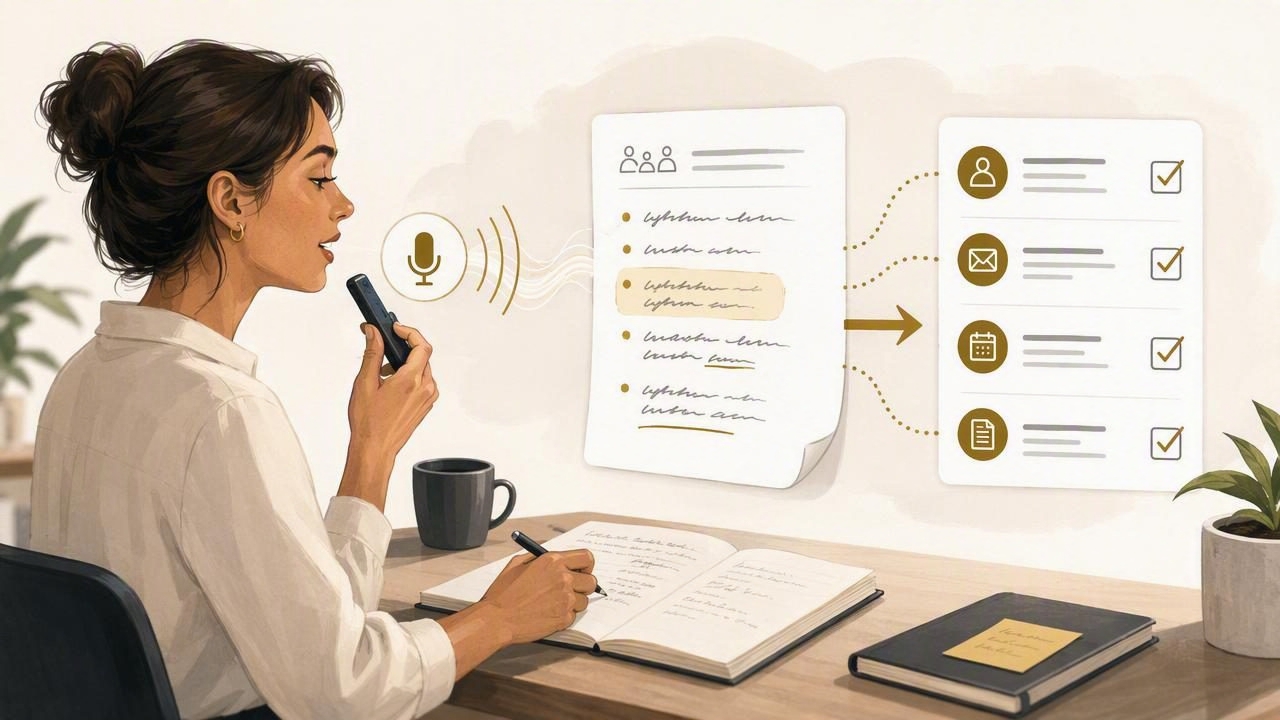
After a meeting, the most useful information is often scattered across a notebook, a few rough bullet points, and the details you can still remember. Turning those fragments into a usable follow-up list can take longer than the meeting itself. A practical alternative is to dictate action items from personal meeting notes while the discussion is still fresh.
This approach is not about automatically recording, attending, or analyzing a meeting. It is about using your own notes and memory to speak a structured recap into the app where you already manage work: a document, email draft, task list, CRM note, or project board. The goal is simple: capture commitments, owners, deadlines, and open questions before they disappear.
With a repeatable speaking structure, voice dictation can help you move from messy notes to a clear list of next steps without typing every detail from scratch.
Why dictating action items works after meetings
Personal meeting notes are rarely written for anyone else. You may use abbreviations, arrows, partial names, or quick reminders such as “send revised deck,” “ask legal,” or “check numbers Friday.” Those notes are enough to trigger your memory, but they are not always ready to share or turn into tasks.
Dictating lets you add the context that may not appear on the page. For example, instead of typing a vague reminder such as “follow up with Sam,” you can say:
Action item: I will send Sam the revised onboarding outline by Thursday afternoon. Include the updated timeline and ask whether the legal review is still scheduled for next week.
That spoken sentence captures an owner, a deliverable, a deadline, and a useful instruction. It is far more actionable than a short handwritten cue.
Voice is especially helpful when you have just finished a call, walked out of a conference room, or returned from an in-person discussion. At that point, you may remember why a task matters, what was agreed, and what still needs confirmation. A short dictated recap preserves that information while it is available.
Start with a reliable action-item structure
The fastest way to create useful follow-ups is to speak in a consistent order. You do not need to sound formal, but a predictable structure makes transcription easier to review and makes the final task easier to understand later.
Use this five-part pattern:
- Task: What needs to happen?
- Owner: Who is responsible?
- Deadline: When is it due or when will it be revisited?
- Context: Why does it matter or what should be included?
- Status: Is it confirmed, pending, blocked, or simply an idea?
For instance, a complete verbal note could be:
Task: prepare a two-page summary of the customer feedback. Owner: me. Deadline: before Tuesday’s planning session. Context: group the feedback by onboarding, reporting, and billing. Status: confirmed.
Speaking labels such as “task,” “owner,” and “deadline” may feel slightly repetitive at first. However, they reduce ambiguity when you review several items later. Once the habit is established, you can use shorter phrasing where the destination format is already clear.
A practical workflow for turning notes into tasks
1. Review your notes before you start dictating
Take one or two minutes to scan your personal notes. Circle commitments, names, dates, decisions, and unresolved questions. Do not try to polish the notes. This quick scan is only meant to refresh your memory and prevent important follow-ups from being skipped.
If your notes contain a line such as “marketing owns launch email?” treat the question mark seriously. It may represent an assumption rather than an agreed assignment. Dictate it as an open question, not as a confirmed task.
2. Separate confirmed actions from discussion points
Not every topic discussed in a meeting needs an action item. A useful distinction is:
| Type of note | How to phrase it | Example |
|---|---|---|
| Confirmed action | State the owner and expected result. | “Jordan will share the draft budget by Friday.” |
| Open question | State what needs clarification. | “Confirm whether procurement approval is required.” |
| Decision | Record the outcome, not a task. | “The team chose the phased rollout option.” |
| Risk or blocker | Describe the issue and next review point. | “Timeline depends on final API access; review Monday.” |
This distinction prevents task lists from becoming cluttered with background discussion. It also makes it easier to tell what needs immediate work and what simply needs to be remembered.
3. Dictate one item at a time
Long, unstructured recaps are difficult to scan. Instead, dictate one action item, pause, then dictate the next. If your voice typing tool pastes text into the active field, open a blank note or task description first and build the list there.
A simple spoken sequence might sound like this:
Action item one. Priya will confirm the event venue availability by Wednesday.
Action item two. I will update the launch checklist after Priya confirms the venue.
Open question. Decide whether to invite partner organizations to the first session.
Use natural pauses between items. When a date is important, say the full date or include the day of the week. “Next Friday” may become unclear when you read the note several days later.
4. Add context that a future reader will need
A task should not require someone to reconstruct the entire meeting. Add a short qualifier when it changes the work. For example, “update the proposal” is broad. “Update the proposal using the three-tier support options discussed with the client” tells the owner what changed.
This is particularly valuable for personal notes that will later become a handoff. Imagine you are unavailable tomorrow. Could a teammate understand the next step from the task alone? If not, dictate one more sentence of context.
Use voice-friendly templates for common follow-ups
Templates reduce the mental effort of deciding how to phrase every item. They are also useful when you need to dictate action items from personal meeting notes into different systems.
For a personal task list
Next action: [verb] [deliverable] by [date]. Include [important detail].
Hypothetical example: “Next action: draft the renewal summary by March 18. Include the usage trends and the requested contract changes.”
For an email follow-up draft
Follow-up: thank [name] for the discussion, summarize [decision], and confirm that [owner] will complete [task] by [date].
After dictating, review the wording before sending. Dictation can create the draft, but it does not send an email or verify whether a commitment is accurate.
For a project update
Project action: [owner] will [task]. Dependency: [blocker or input]. Next review: [date].
This format is useful for work involving dependencies. It makes blockers visible instead of hiding them inside a general status update.
Review before tasks become commitments
Dictation is fast, but speed should not replace verification. Before copying your action items into a shared workspace, check four things:
- Names: Correct spelling matters, especially for clients, colleagues, and product names.
- Dates: Confirm whether the date was agreed or merely suggested.
- Ownership: Avoid assigning work based on an assumption from your notes.
- Action verbs: Replace vague language such as “handle,” “look at,” or “deal with” when a clearer verb is available.
For example, change “Maya will handle the report” to “Maya will compile the monthly retention report and share it with finance.” Specific language reduces follow-up questions.
If you use optional AI cleanup, treat the result as an editing aid rather than a record of what happened. Review any rewritten text against your own notes, especially names, quantities, dates, and commitments.
Troubleshooting: when action items become one long paragraph
A common problem is dictating several tasks into a single dense block of text. This usually happens when the speaker moves quickly from one topic to another without clear verbal boundaries.
To fix it, use a spoken marker before every new item: “new action item,” “open question,” “decision,” or “blocker.” Then review the transcript and place each item on its own line. If your task app supports separate fields, dictate the task title first, then dictate supporting detail in the description field.
Another useful tactic is to make two passes. In the first pass, dictate only the short list of actions. In the second pass, add missing deadlines and context. This is often more accurate than trying to compose perfect task descriptions while recalling the conversation.
Handle sensitive notes thoughtfully
Personal meeting notes may contain customer details, internal plans, or private feedback. Decide what belongs in a shared task before dictating it. You can replace sensitive details with a neutral reference, such as “the enterprise account” or “the compensation topic,” and keep the fuller context in an appropriate private system.
Also consider your environment. Dictating aloud in a public space may not be appropriate for confidential material. Voice transcription that uses a cloud provider requires an internet connection, so use your organization’s policies to decide what information is suitable to transcribe.
Make the habit easy to repeat
The best time to capture follow-ups is immediately after the meeting, when details are still clear. Create a small ritual: open your notes, dictate confirmed actions, mark open questions, review names and dates, and then move the final items into the right system.
If you want a shortcut-based way to place dictated text into the active field, see the official guide to dictating AI prompts for a related structured-dictation workflow. Dictámelo can also be downloaded from its download page for Mac and Windows.