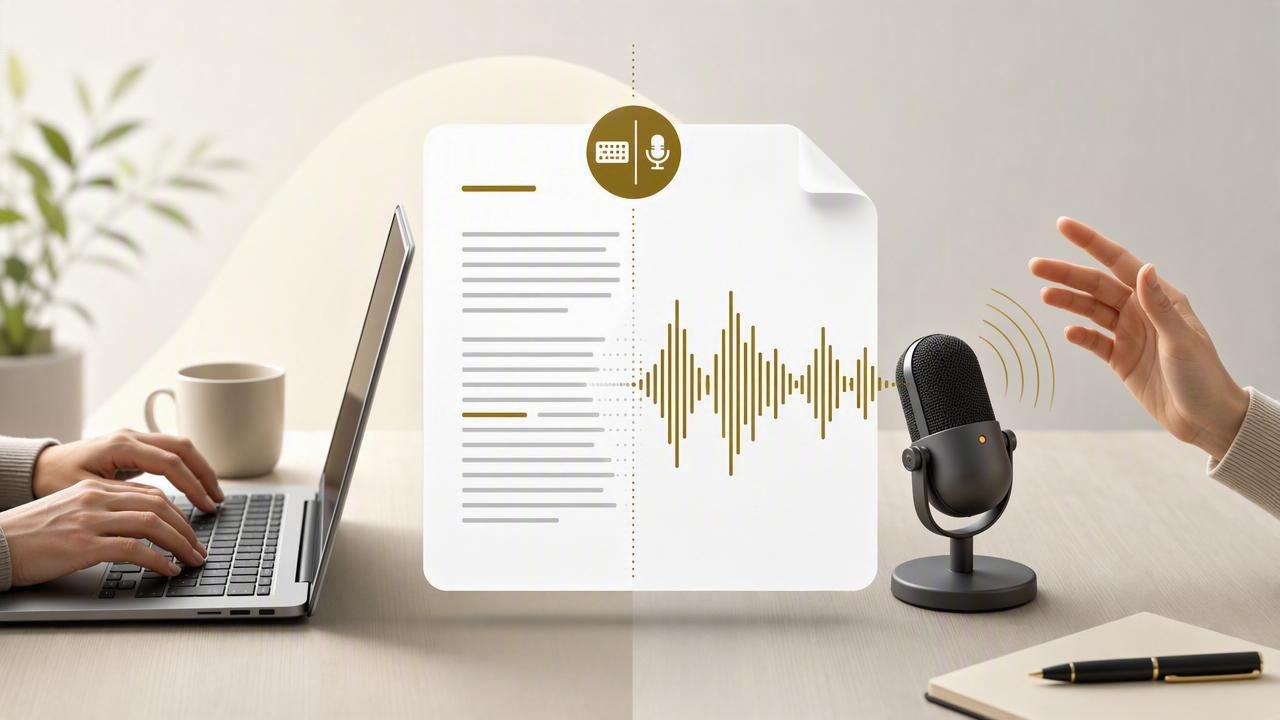
Many people treat voice dictation and keyboard typing as competing methods. In practice, the strongest workflow is often a combination of both. You can speak when you need momentum, type when precision matters, and switch between the two without losing your place.
Learning how to combine typing and dictation in a document can make writing feel less tiring and more flexible. It is especially useful when you are drafting long emails, reports, project briefs, proposals, documentation, or AI prompts. Instead of forcing every sentence through one input method, you can match the method to the task in front of you.
This article explains when to dictate, when to type, how to create a reliable hybrid workflow, and how to review a document so the final version still sounds intentional and professional.
Why typing and dictation work better together
Typing gives you control. It is usually the better choice for short edits, file names, formulas, passwords, code, exact dates, links, numbers, and unfamiliar terms. Dictation, by contrast, can help you move quickly through ideas that are already clear in your head but slow to type.
The goal is not to dictate every word. The goal is to reduce friction at the right moments.
| Writing task | Usually best input method | Why |
|---|---|---|
| Brainstorming an opening paragraph | Dictation | Speaking can help ideas arrive in a more natural sequence. |
| Writing a subject line or heading | Typing | Short text benefits from deliberate word choice. |
| Explaining a process in detail | Dictation | You can keep moving through a logical explanation without stopping for each sentence. |
| Editing names, figures, and URLs | Typing | Exact character-level accuracy matters. |
| Adding a personal example | Dictation | Conversational details are often easier to say than compose from scratch. |
| Final proofreading | Typing and reading | Reviewing visually makes inconsistencies easier to catch. |
A hybrid approach also prevents a common problem: over-editing too early. When every sentence is typed slowly, it is easy to stop after a few words and revise before the idea has fully developed. Dictation encourages you to get the complete thought onto the page first. Typing then helps you shape it.
Start with a document structure you can see
Before speaking, create a small visual framework. This takes only a minute and gives your dictation a destination. You do not need a detailed outline; a few headings or bullets are enough.
For example, before drafting a client update, type this:
Subject: Project update

1. What was completed
2. What is in progress
3. Decision needed
4. Next step
Then place your cursor under each section and dictate the explanation. This approach is easier than delivering one long, unstructured voice message and trying to reorganize it later.
It also creates natural stopping points. After dictating one section, pause and use the keyboard to correct a name, add a date, or replace a vague phrase. Then move to the next heading.
Useful rule: type the map, dictate the terrain, and type the signposts.
In other words, use your keyboard for structure and navigation. Use your voice for the fuller explanation between those structural points.
A practical workflow for drafting with both methods
The following process works in most document editors, email clients, note-taking apps, and browser text fields.
- Type the purpose in one sentence. Write a short reminder such as “Explain the revised timeline and ask for approval.” This keeps the draft focused.
- Add headings or prompts. Use questions if helpful: “What changed?” “What does the reader need to do?” “What happens next?”
- Dictate one idea at a time. Speak in short paragraphs rather than attempting the entire document in a single pass.
- Pause to type precise details. Insert product names, prices, dates, addresses, account numbers, references, or links manually.
- Read the full draft silently. Look for repeated phrases, missing context, and sentences that sound too much like speech.
- Make the final edits by keyboard. Tighten the opening, improve transitions, and make the call to action obvious.
This sequence is useful because dictation is strongest during the drafting stage, while typing is strongest during the control and editing stage.
Use spoken punctuation deliberately
One reason dictated documents become difficult to edit is that the speaker treats dictation like a casual conversation. A document still needs paragraphs, punctuation, and readable sentence lengths.
When your dictation tool supports spoken punctuation, say it as you go. For example:
Hi Maya, comma

I reviewed the revised outline and the overall direction looks good. Period

The only remaining question is whether we should include the implementation timeline in this version. Question mark

Thanks, comma
Alex
You do not have to dictate every comma perfectly. However, speaking paragraph breaks and sentence endings gives you a cleaner starting point. It also forces a helpful pause between ideas.
If spoken punctuation interrupts your flow, use a simpler compromise: dictate a rough paragraph, then type punctuation and formatting immediately afterward. The key is to avoid leaving the entire cleanup task until the end of a long session.
Example: drafting a project brief
Imagine you need to prepare a short project brief for an internal team. The document needs to be clear, but you have already explained the project out loud several times. This is an ideal hybrid-writing situation.
First, type these headings:
- Project goal
- Audience
- Scope
- Open questions
- Proposed next step
Under Project goal, dictate a plain-language explanation of what the project should accomplish. Under Audience, type the exact department names or user segments. Under Scope, dictate the broad activities, then type the specific deliverables once you have confirmed them.
For instance, you might dictate: “The project should make it easier for new customers to understand the onboarding steps before their first call.” Then you might type a more exact deliverable list: “Landing page copy, three onboarding emails, and a support handoff checklist.”
The spoken sentence provides the why. The typed list provides the precise what. Together, they produce a document that is both readable and actionable.
How to avoid the most common hybrid-writing mistakes
Do not dictate while you are still deciding what you mean
Dictation is fast, but it cannot solve an unclear objective. If you are uncertain about the message, type a few notes first. Once you know the point, speaking can help you expand it.
Do not use dictation for sensitive strings
Passwords, payment details, API keys, private access codes, and confidential identifiers should not be spoken into a general writing workflow. Type them manually where needed, and follow your organization’s security practices.
Do not trust the first transcription blindly
Voice recognition can mishear proper nouns, acronyms, numbers, and words that sound alike. Review text that could change a decision or create confusion. Pay particular attention to names, negations such as “not,” quantities, and dates.
Do not edit every sentence during the first pass
Constantly stopping to perfect wording can remove the speed advantage of dictation. Separate drafting from polishing. A good checkpoint is after each section, not after every phrase.
Troubleshooting: when dictated text lands in the wrong place
A practical issue in hybrid writing is accidental text placement. You may finish speaking and discover that the transcription appeared in a search box, chat panel, or the wrong paragraph. This usually happens because the active text field changed while you were preparing to dictate.
Use this quick routine before each dictation segment:
- Click directly where the new text should appear.
- Wait a moment and confirm the cursor is visible.
- Keep the document window in focus while you speak.
- Release the dictation shortcut, then review the inserted text before moving on.
If the cursor is not visible, do not start dictating yet. This small habit is particularly useful when switching between a document, a browser tab, and a messaging app.
Windows users who need help with voice input setup or text insertion can consult this voice dictation on Windows guide before returning to their document workflow.
Create a repeatable “speak, type, review” rhythm
The best system is one you can repeat without thinking about it. Try working in blocks of five to ten minutes:
- Speak: dictate one section, explanation, or paragraph.
- Type: add exact terms, format lists, and fix obvious transcription errors.
- Review: read the section from the reader’s perspective before starting the next one.
This rhythm is especially effective for people who lose energy during long typing sessions or lose structure when speaking freely. It gives you momentum without giving up precision.
When you need a push-to-talk workflow that transcribes and pastes into the active text field, Dictámelo is available to download here. Use it as an input method, then keep ownership of the final document through careful typing and review.
Final takeaway
To combine typing and dictation in a document effectively, do not choose one method for the entire job. Type the structure, dictate the explanation, type the details, and review everything before sharing. The result is often faster than typing alone and more accurate than relying on a raw transcription.
Start with one document this week: create three headings, dictate a short paragraph beneath each one, and spend five minutes editing by keyboard. That small experiment is enough to discover where your voice creates momentum and where your hands provide the control you need.